
The Logic Lab
Expert laptop motherboard repairs explained in plain English
Laptop turns off when unplugged (even with new battery)
If a new battery doesn't fix it, the charging circuit on the motherboard is likely broken.
Fix Charging Circuit →Laptop Won't Turn On? Power Light Blinking Codes
Think of it as a "Check Engine" light for your laptop. These rhythmic LED flashes are Diagnostic Blink Codes that pinpoint exactly which internal component—like your RAM, battery, or motherboard—is loose or failing.
How to fix laptop water damage (Why rice doesn't work)
Don't try to turn it on. Put the bag of rice away—it causes more harm than good. Professional ultrasonic cleaning is the only proven method to stop corrosion.
Get Emergency Help →Can a fake or cheap charger damage a laptop motherboard?
Absolutely. Cheap knock-offs send "noisy" electricity. Sensitive components will eventually "pop" from voltage spikes.
Repair Power Damage →Laptop fan making loud noise and overheating
A screaming fan means heat is trapped. Regular cleaning and thermal paste repasting are essential to prevent board failure.
USB port not working on laptop (Hardware repair)
We can often solder on a new physical USB port for a fraction of the cost of a full motherboard replacement.
Learn More →How to perform a hard reset on a laptop that won't boot
Disconnect the battery and hold the power button for 30 seconds to drain residual power. Then, reconnect and try again.
Laptop keeps restarting in a boot loop
It's often caused by a corrupted BIOS chip or an unseated RAM stick.
Fix Corrupted Bios →How to prevent laptop motherboard failure
Avoid soft surfaces like beds to prevent overheating and always use original manufacturer power bricks.
Read Care Guide →Laptop won't turn on: No lights, no sound, no power
Hardware rarely warns you. A tiny capacitor likely gave up after years of heat stress. We find the short and fix it.
Component Level Repair →Laptop made a popping sound and died
That "pop" was likely a MOSFET blowing up. We can replace these individual parts without replacing the whole board.
Fix Dead Board →Laptop motherboard repair vs replacement cost
If the repair is under 50% of a new machine's cost, component-level board repair is the smarter, eco-friendly choice.
Learn More →Component Guide
What are those tiny parts actually called? Here is a breakdown of the most common board components.
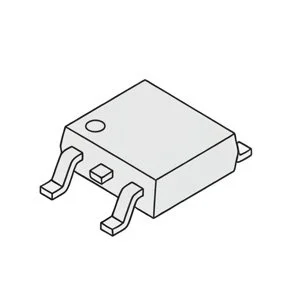
Power Flow Switch
Small black squares that control power flow. When they fail, you'll often see a microscopic burn hole or a "pop" mark.
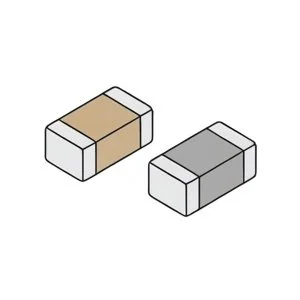
Energy Storage Filter
Small tan or grey rectangles. They filter electricity. If they short-circuit, they stop the entire board from turning on.
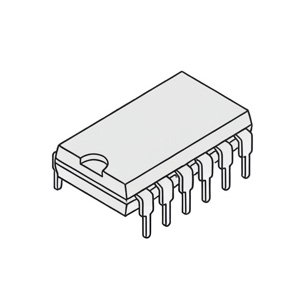
Startup Controller
Stores the core code that tells the laptop how to wake up. Corruption here means the laptop turns on but shows no image.
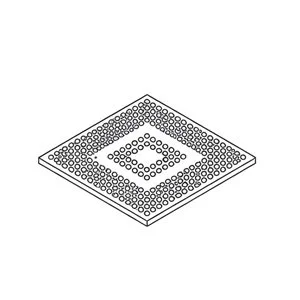
Central Processors
These are the largest chips on the board. They generate the most heat and are usually the most expensive parts, making them not worth replacing.
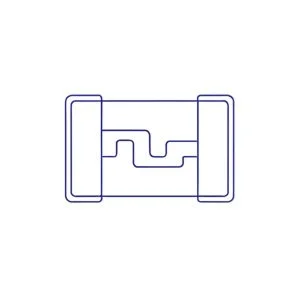
Safety Fuse
Tiny white or green parts. If they blow, you might lose your screen backlight or keyboard functionality entirely.
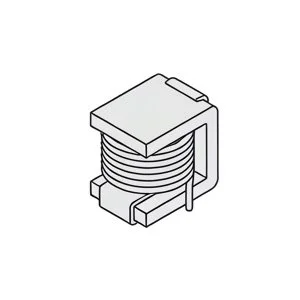
Voltage Stabilizer
Large grey blocks that stabilize high-current power. They rarely fail but are essential for a stable system.
Hardware Longevity & Thermal Management Guide
Follow these strategies to extend the lifespan of your hardware.
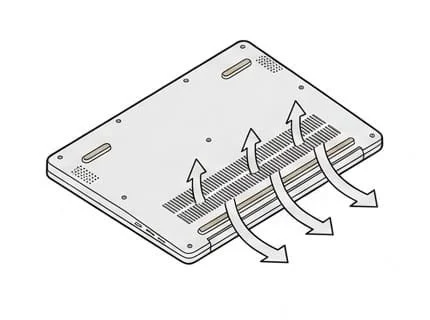
Clear Vents
Keep vents clear so your system can breathe and stay cool.
- Dust twice a year
- Remove blockages
- 4-inch wall gap
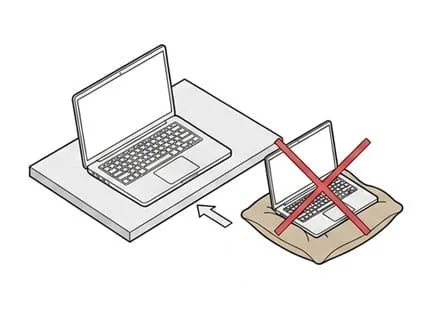
Hard Surfaces
Use flat surfaces to allow better airflow underneath.
- Desks only
- Avoid beds/couches
- Use a riser/stand
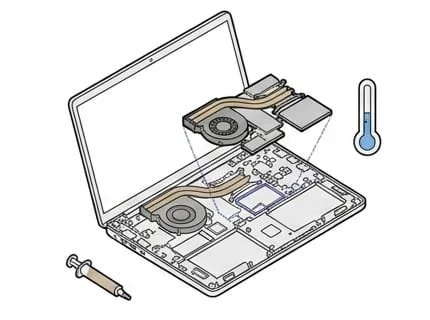
Internal Care
Maintain the parts that move heat away from the chip.
- Repaste every 3 years
- Monitor heat levels
- Balanced mode
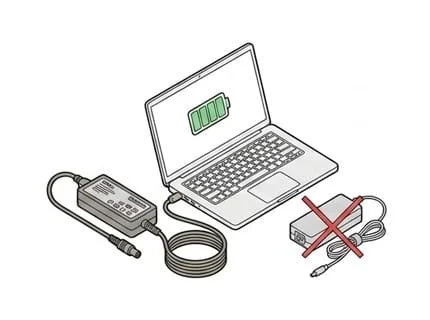
Genuine Power
Protect your hardware by using only certified power components.
- OEM batteries only
- Original power brick
- Avoid cheap clones
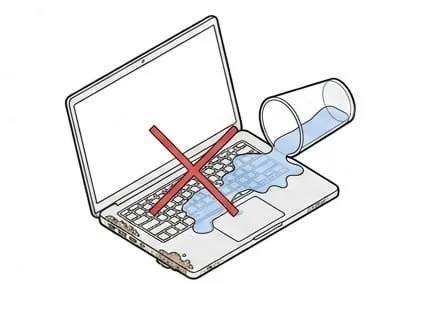
Spill Defense
Liquid causes instant corrosion and short circuits on the board.
- No drinks near desk
- Unplug if wet
- Pro ultrasonic clean
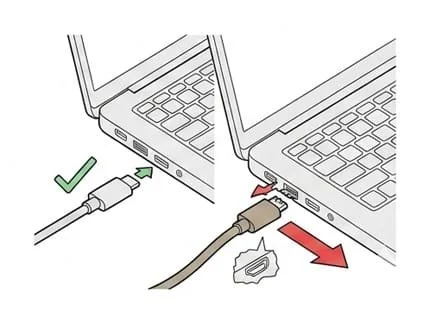
Port Integrity
Physical stress on ports can tear solder pads off the board.
- Plug in gently
- Avoid cable tension
- Fix loose jacks early
The Safe Guide to Thermal Paste
Why avoid liquid metal, the hidden dangers, and the best high-performance alternatives.
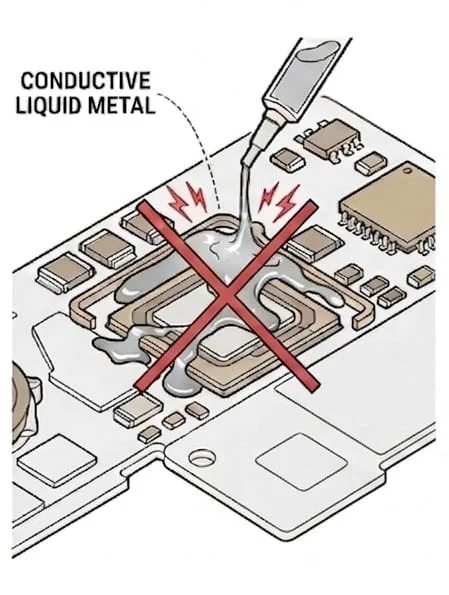
The Danger of Liquid Metal
It is electrically conductive. A single microscopic leak causes an immediate motherboard short.
Repair Leakage Damage →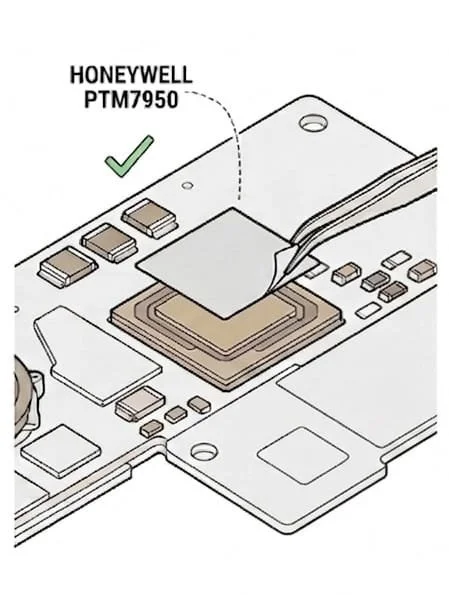
Honeywell PTM7950
The best alternative. Get liquid-metal performance with zero risk of electrical shorts.
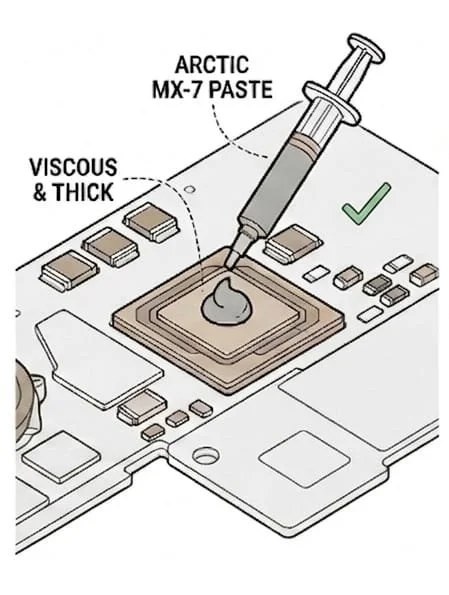
Arctic MX-7 Thermal Paste
Reliable for 99% of users. It's thick and non-conductive."
Packaging Masterclass
Protect your device from transit damage with these three simple steps.
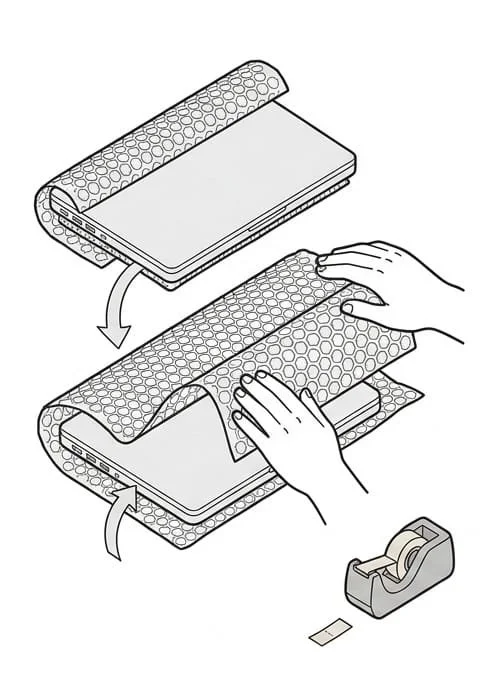
Wrap the Laptop
Wrap your laptop in 3-4 layers of large-cell bubble wrap. Tape it securely so it can't slide out of the sides.
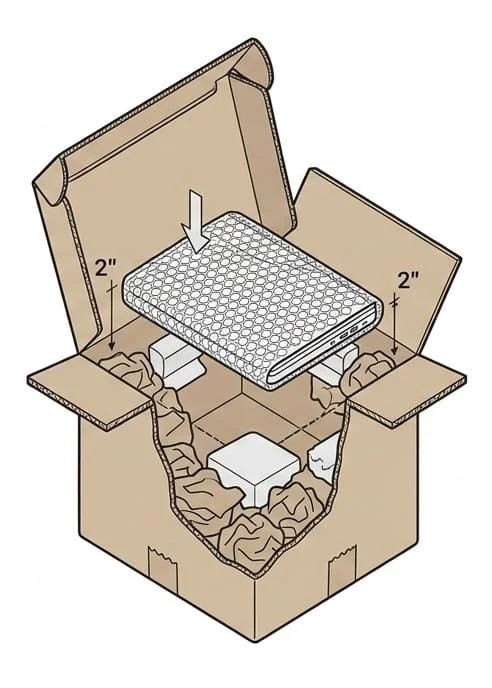
Pack the Box
Place it in a sturdy box with at least 2 inches of padding (paper or foam) on all six sides of the device.
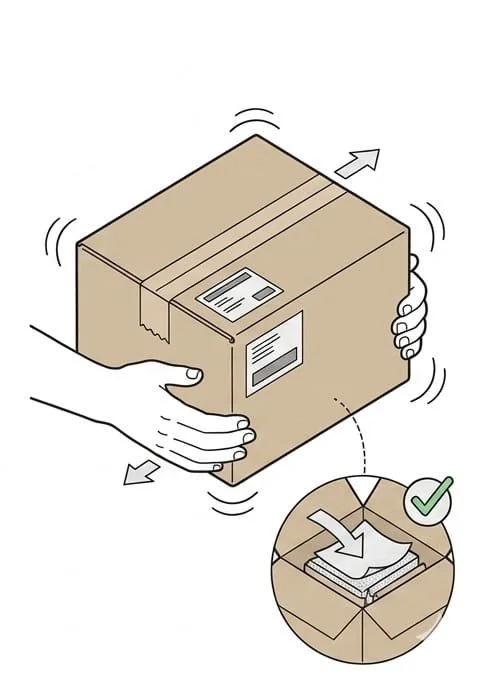
Check for Movement
Give the box a wiggle. If you feel any movement, add more filler. It should be snug and movement-free.
Send My Laptop →